

Character creation guide
Build your AI character in six steps, from the first look to a saved character.
Overview
Open Create from the menu to build a character. The flow has six steps. You pick the look, the voice, and the personality, then generate the first image.
How the flow works
Steps 1 to 4 show a live preview next to the choices. The stepper at the top tracks your progress, and a red dot marks the step you are on. Use Continue and Back to move between steps.
Step 1 — Persona
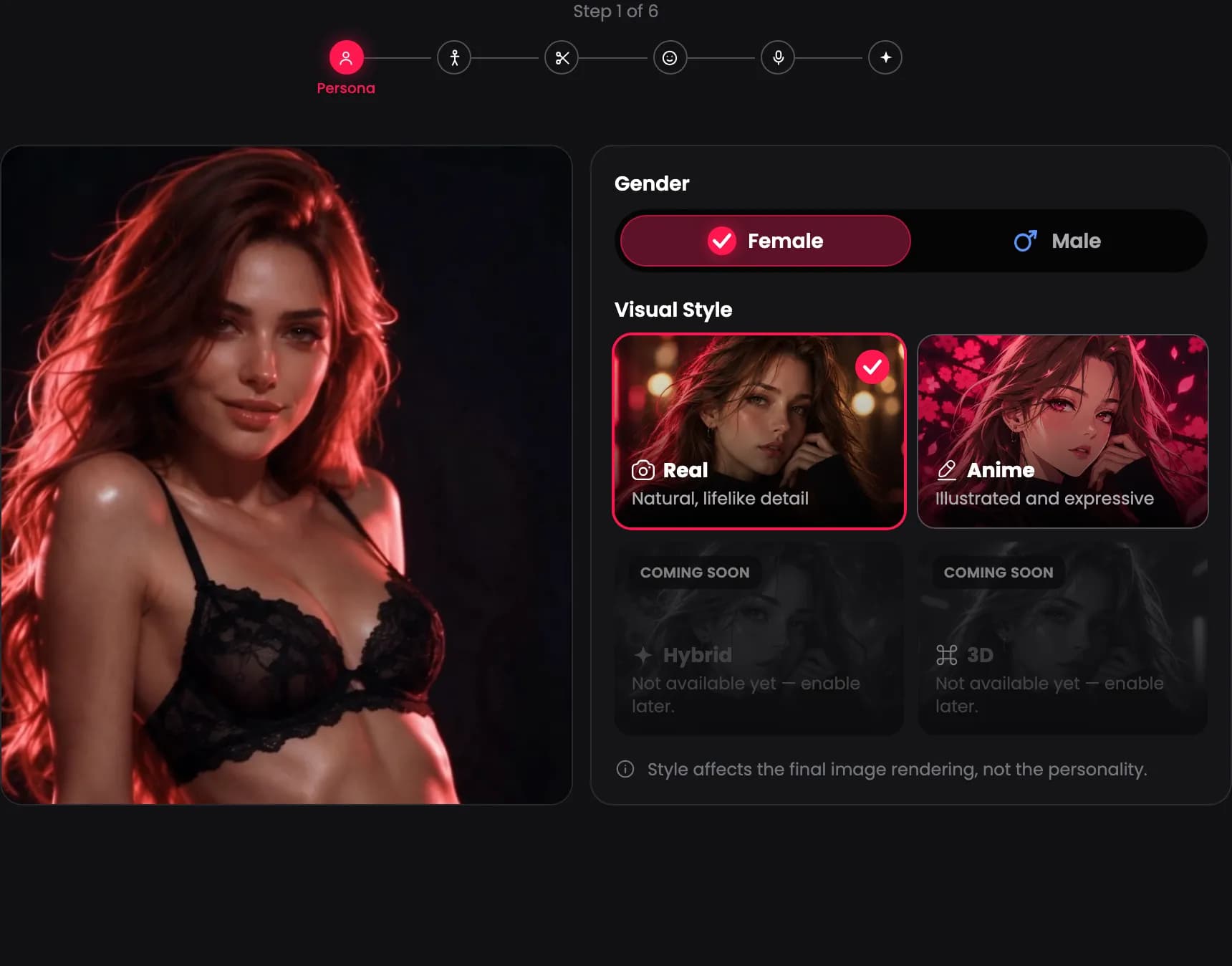
Set the two choices that shape every image: gender and visual style.
- Gender. Choose Female or Male.
- Visual Style. Choose the art style for the images:
- Real. Natural, lifelike detail.
- Anime. Illustrated and expressive.
- Hybrid and 3D are marked Coming soon. You can use them later when they are available.
Step 2 — Ethnicity
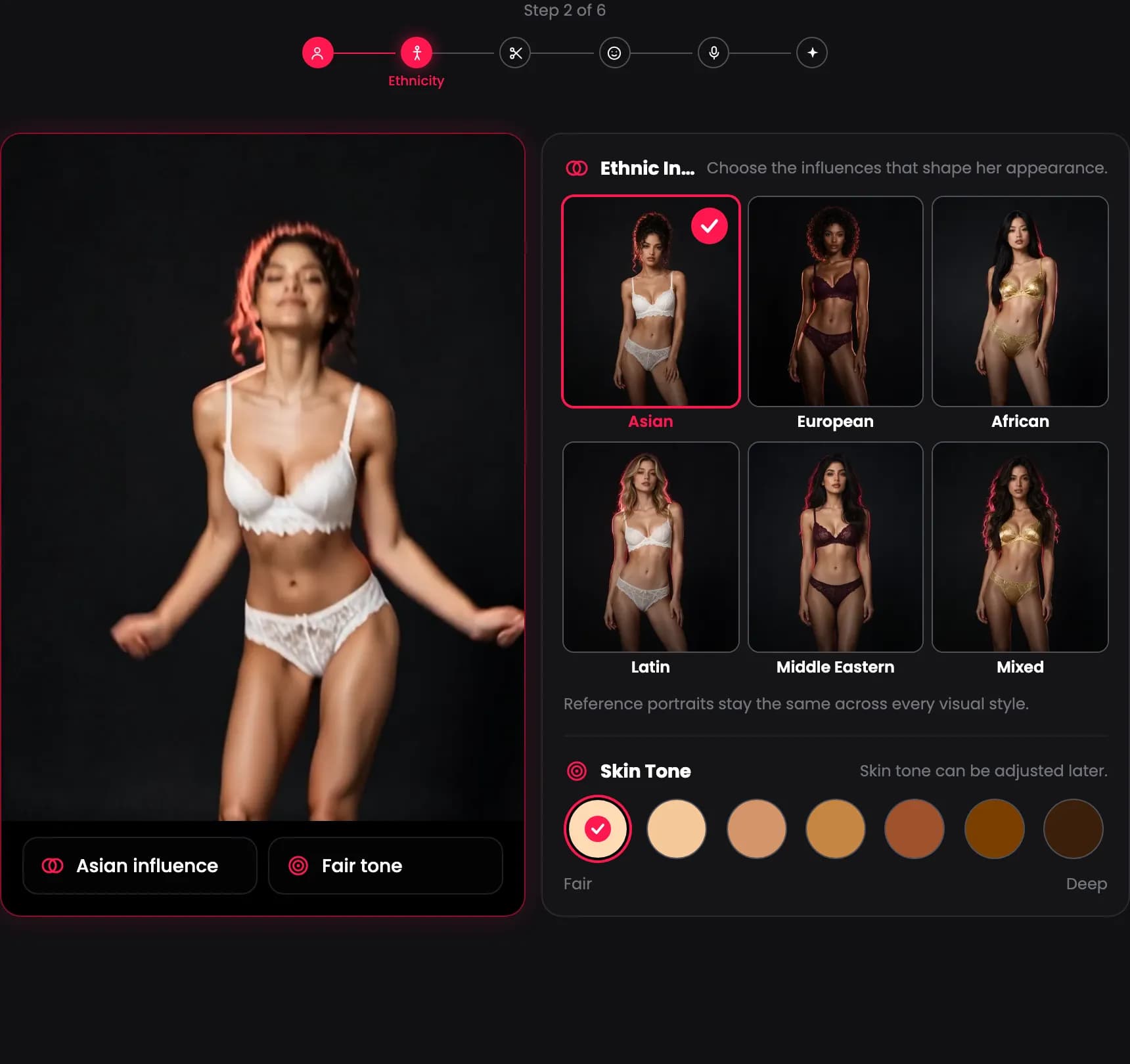
Set the base look with an ethnic influence and a skin tone.
Ethnic Influence
Choose the influence that shapes her appearance. The options are Asian, European, African, Latin, Middle Eastern, and Mixed.
Skin Tone
Pick a base skin tone on the scale from Fair to Deep.
Step 3 — Hair & Eyes
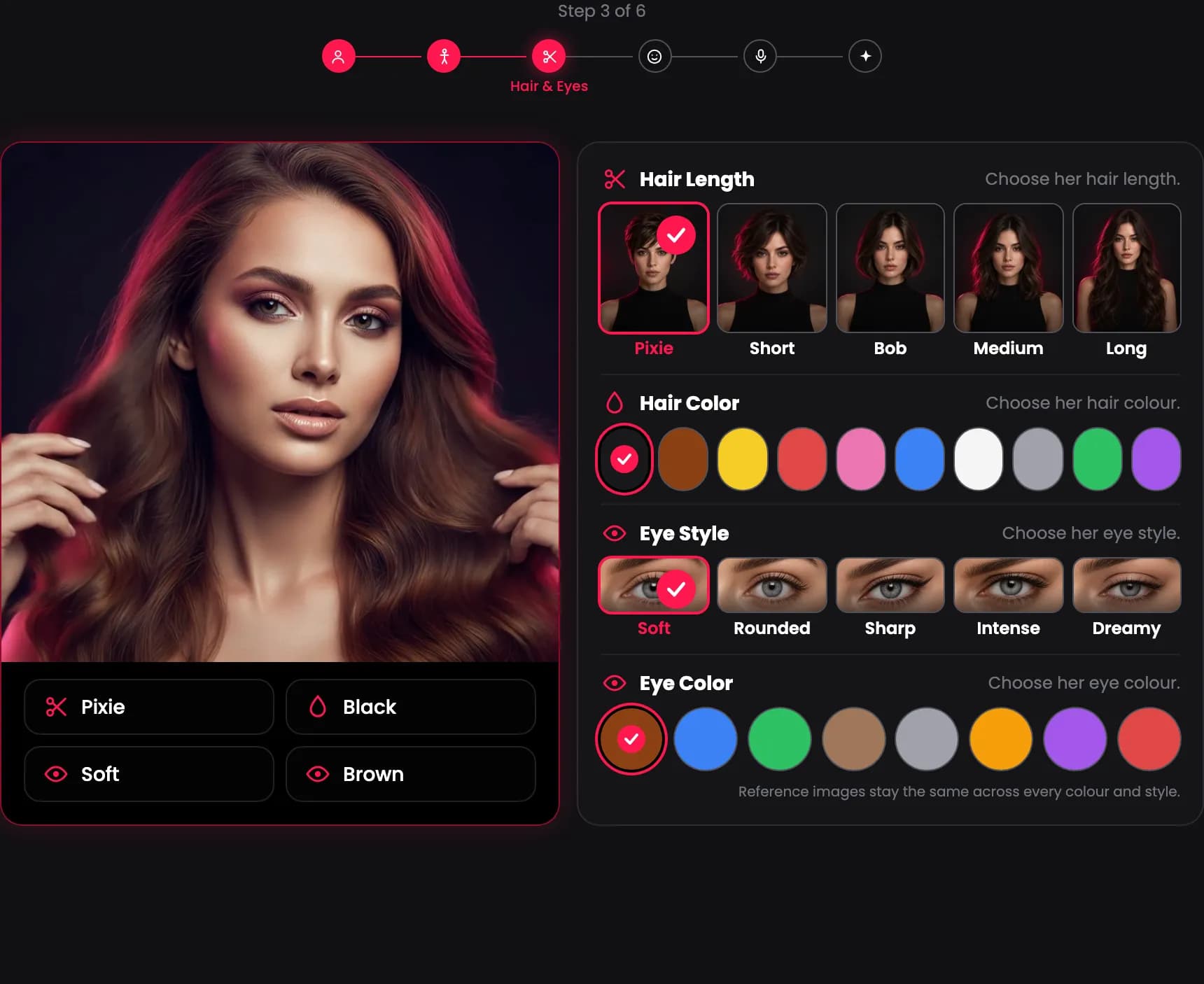
Set the hair and eyes. Each row has its own choices.
- Hair Length. Choose Pixie, Short, Bob, Medium, or Long.
- Hair Color. Pick a colour from the swatches.
- Eye Style. Choose Soft, Rounded, Sharp, Intense, or Dreamy.
- Eye Color. Pick a colour from the swatches.
Step 4 — Figure
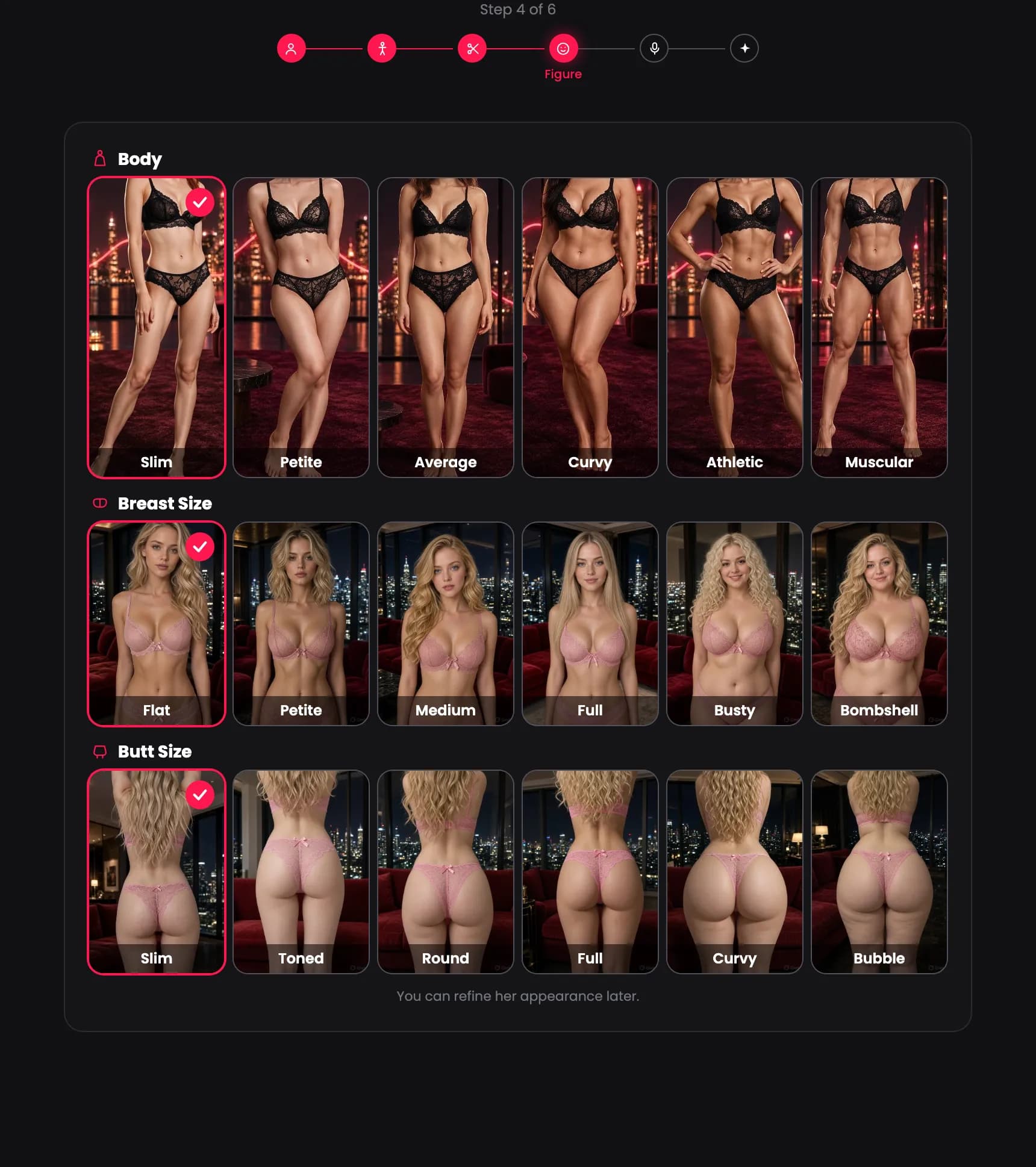
Set the body shape with three choices.
- Body. Choose Slim, Petite, Average, Curvy, Athletic, or Muscular.
- Breast Size. Choose Flat, Petite, Medium, Full, Busty, or Bombshell.
- Butt Size. Choose Slim, Toned, Round, Full, Curvy, or Bubble.
Step 5 — Voice & details
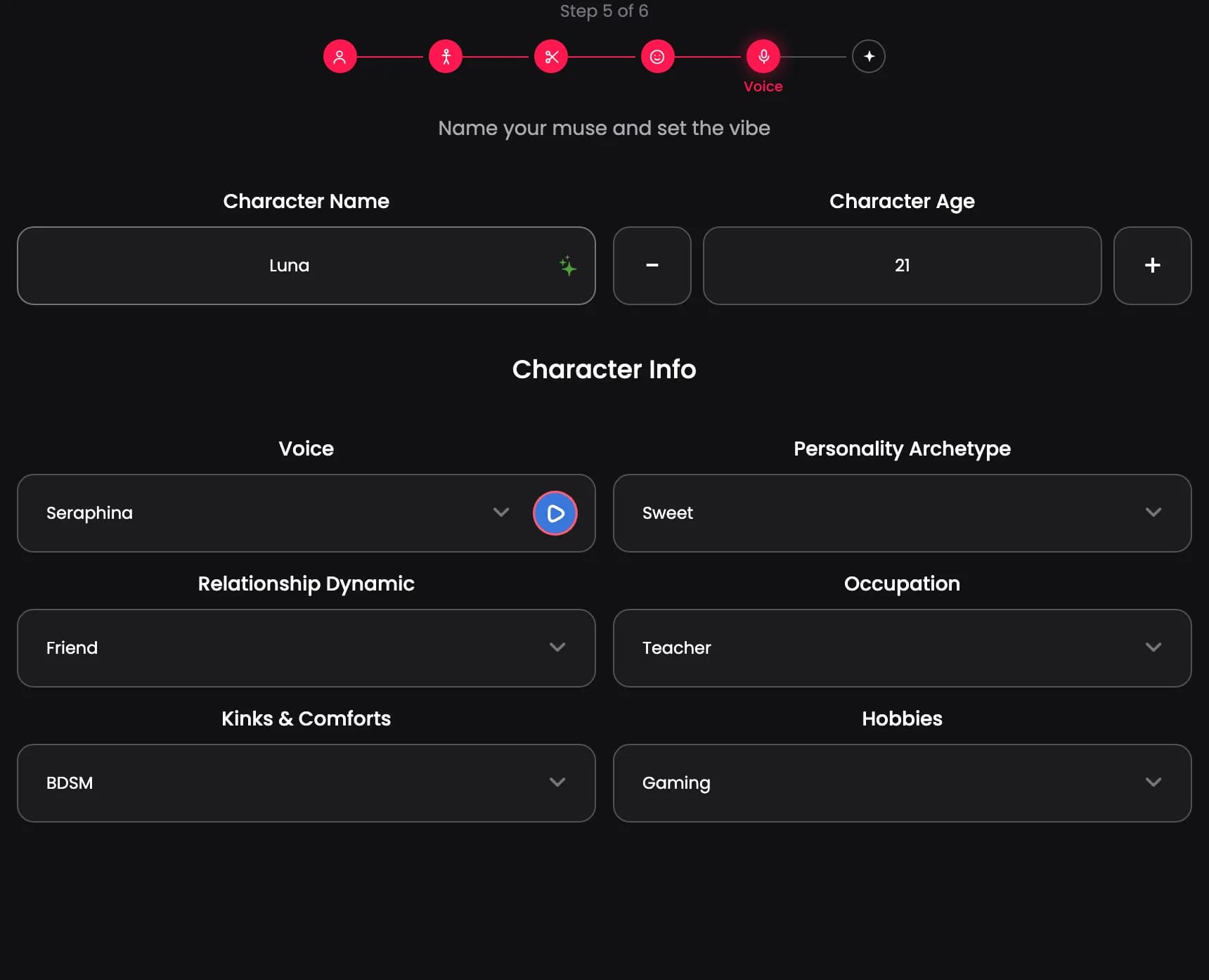
Name your muse and set the vibe. You can change any of these later.
- Character Name. Enter a name, or use the sparkle button to suggest one.
- Character Age. Set the age with the minus and plus buttons.
Character info
- Voice. Pick a voice. Use the play button to hear a sample.
- Personality Archetype. Choose the core personality, for example Sweet.
- Relationship Dynamic. Set how she relates to you, for example Friend.
- Occupation. Choose a role, for example Teacher.
- Kinks & Comforts. Add intimate preferences, if you want.
- Hobbies. Choose an interest, for example Gaming.
Step 6 — Finalize
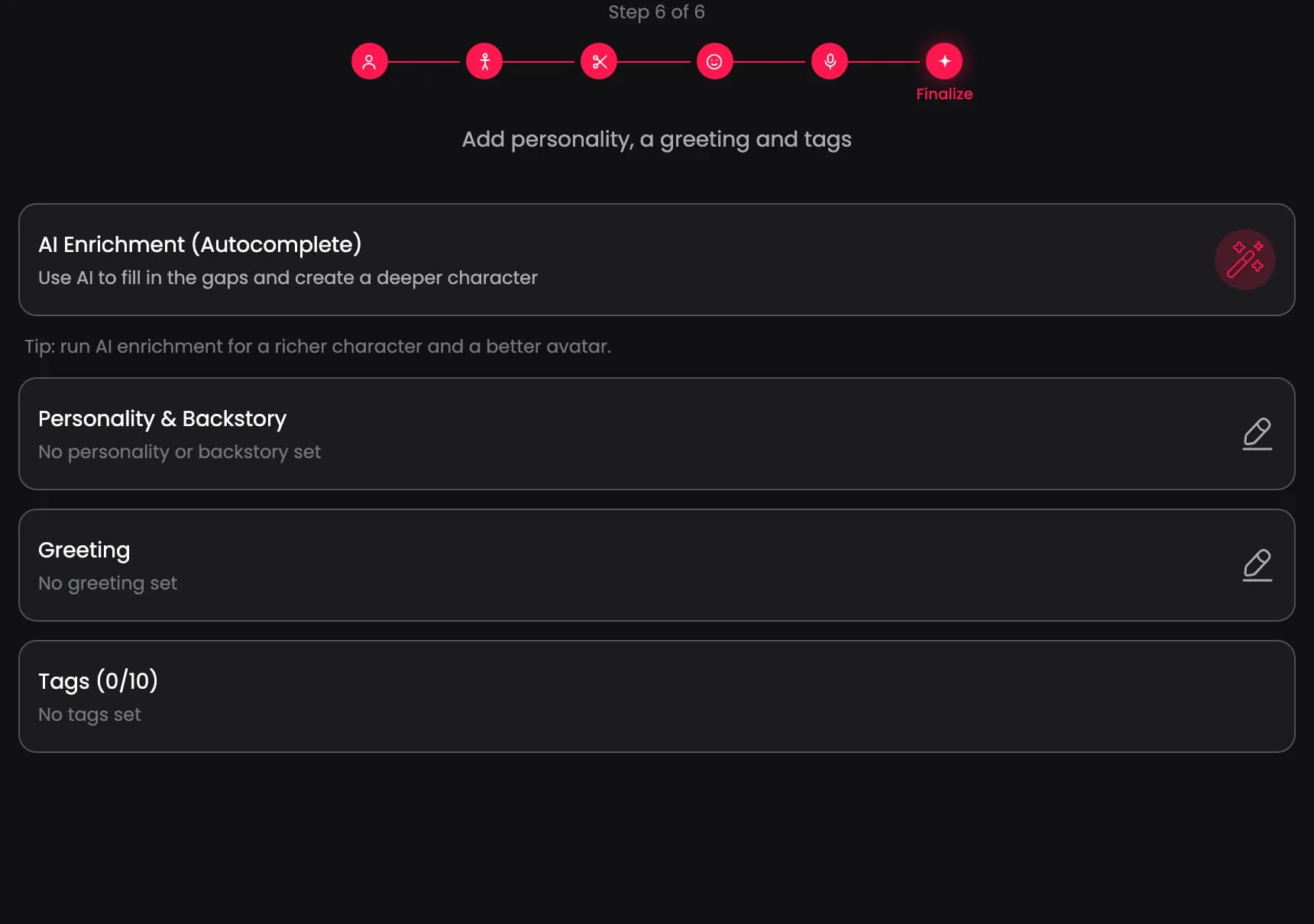
Add the personality, greeting, and tags, then generate your character.
- AI Enrichment (Autocomplete). Let AI fill in the gaps and create a deeper character.
- Personality & Backstory. Open this to write the personality and backstory yourself.
- Greeting. Write the first message your character sends in a chat.
- Tags. Add up to 10 tags that describe your character.
Generate your character
Select Generate to create the character and its first image. The button shows the Neon coin cost. You sign in to generate and save.
After you generate, your character opens with its first image. You can regenerate the image and edit every detail later from My Characters.