Image generation guide
Create still images of your characters in the Generate tool — pick a star, build a scene, and set the look.
Overview
Open Generate from the menu to create images of your characters. You pick a star, add an optional scene, choose a look, and generate. Every image you make saves to your Generate library automatically.
How the flow works
You do not type long prompts. You pick your character and choose the scene from ready-made options. A free-text box is there when you want more control, and the results drop into a grid below the controls as they finish.
Step 1 — Open the Generate tool

Open Generate from the menu. Keep the settings below to make a still image.
- Still Images. Keep this tab selected. The Animated Scenes tab makes videos instead.
- Mode. Keep Style Present. Edit Style restyles an image you already have.
Step 2 — Pick your star
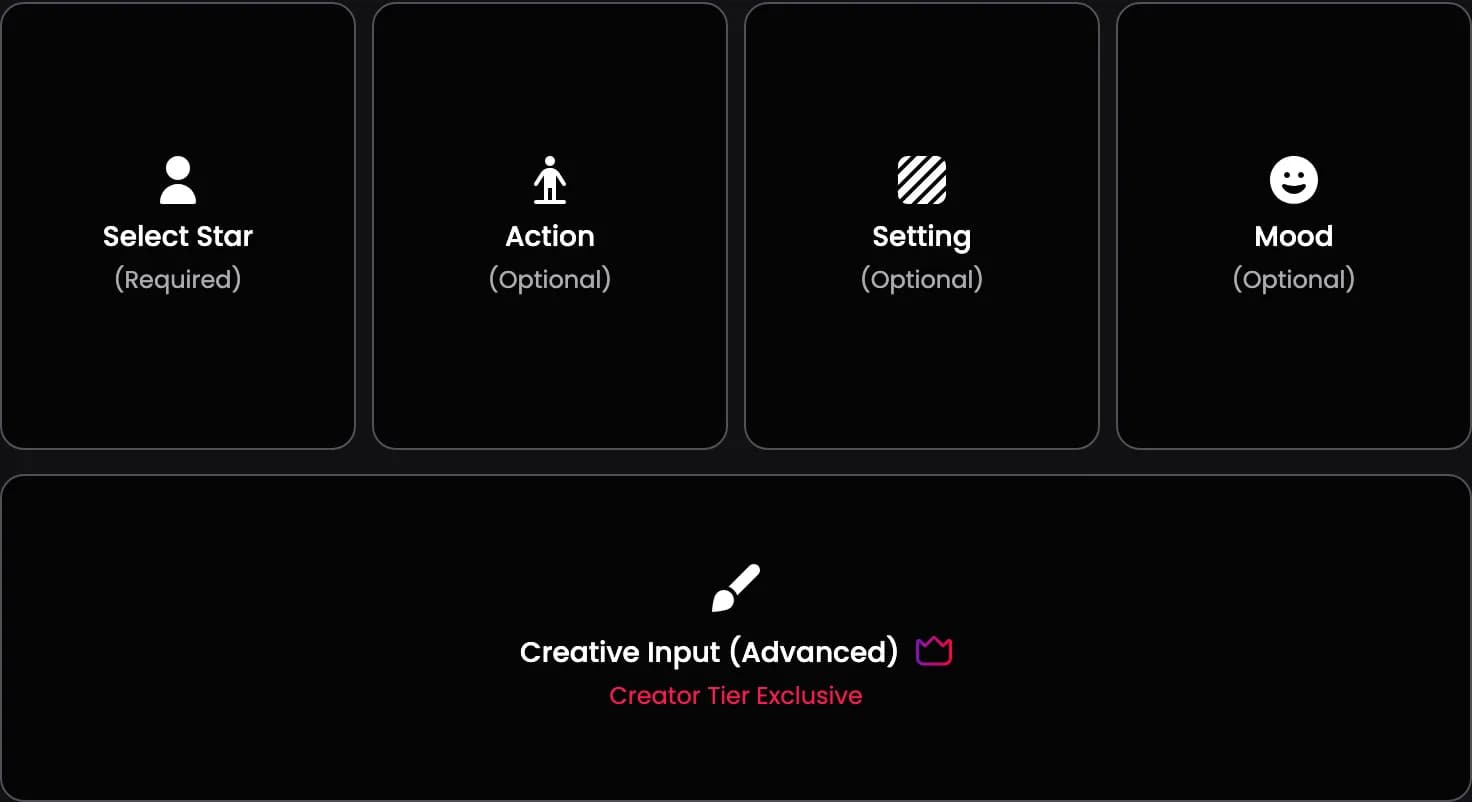
Tap Select Star to choose the character in the image. This is the only required choice.
- Select Star. Pick a character from your list.
- Up to four. Add up to four characters to put them in the same image.
Step 3 — Build the scene
Add a scene with three optional cards. Each one opens a set of ready-made options with previews.
- Action. Choose what your character is doing.
- Setting. Choose where the scene takes place.
- Mood. Choose the feeling of the image.
Step 4 — Creative Input
Open Creative Input to describe a specific scene in your own words. This box is optional.
- Write a short, plain description of the scene you want.
Step 5 — Set the style and size

Set how the image looks and its shape with the two controls under the cards.
- Visual. Choose the style, such as Cinematic or Realistic.
- Orientation. Choose the shape: 4:5, 9:16, 16:9, or 1:1.
Step 6 — Generate

Tap Generate Image. The button shows the Neon coin cost. A placeholder tile appears while the image renders, then the finished image drops into the grid below.
Step 7 — Find and manage your images
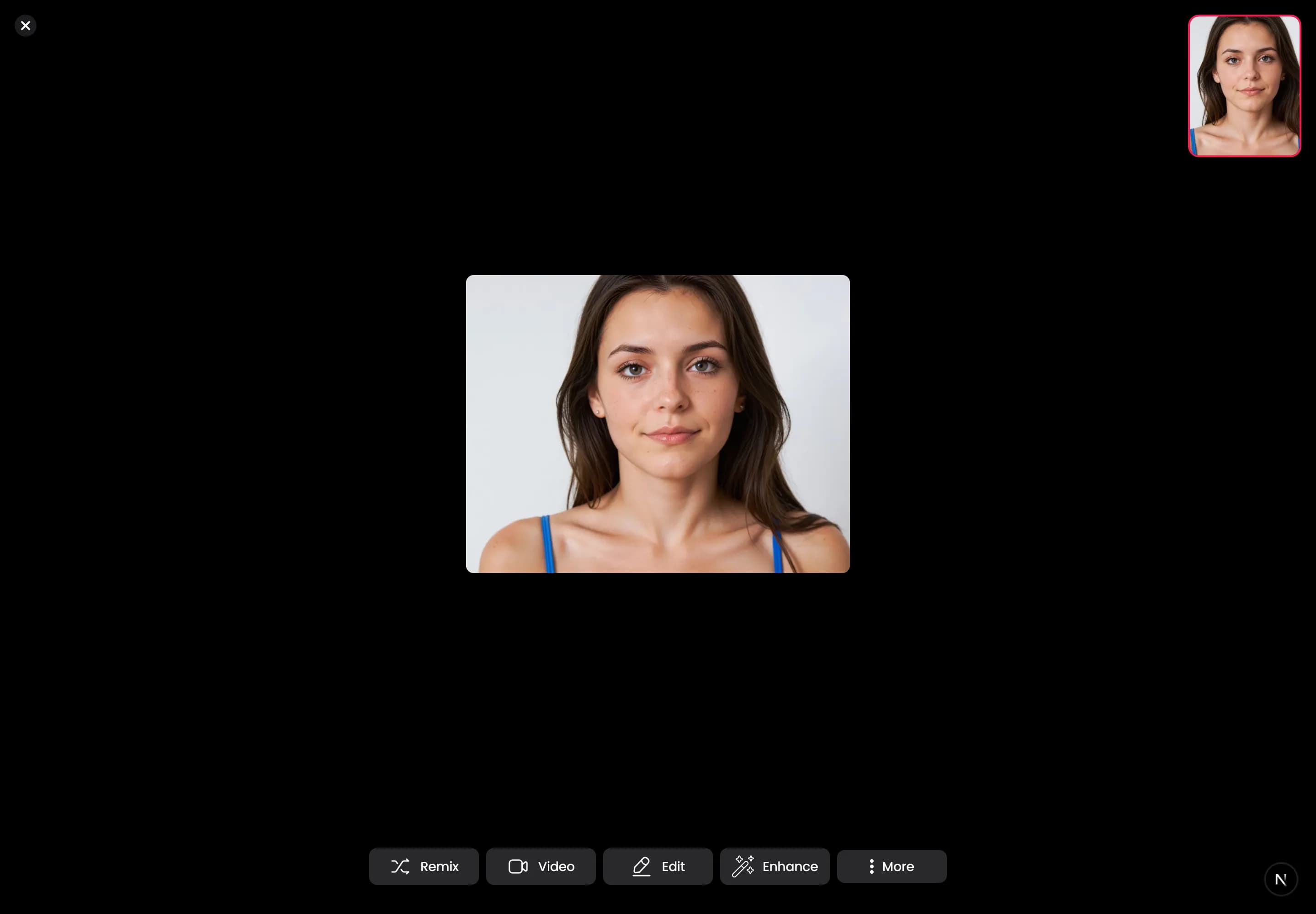
Every image saves to your library on the Generate page. Use the All, Images, and Videos tabs to filter, and tap any image to open it full screen.
What you can do with an image
- Remix. Make a new version with the same setup.
- Video. Animate the image into a scene.
- Edit. Restyle the image.
- Enhance. Sharpen and improve the image.
- Download, Share, or Delete from the More menu.